Workspace documentation
Connect Shopify to MightWork
Bring contacts from new Shopify orders into your selected MightWork workspace.
Before you install
What you need
- A MightWork workspace owner with Leads Connector access.
- Permission to install apps on the Shopify store. During review, use an approved development store.
- A store can belong to one MightWork workspace at a time. Select the right workspace before approving access.
What moves between your apps
- 1New Shopify order — Not started
- 2Store-authorized contact read — Not started
- 3MightWork Leads inbox — Not started
Your checklist: 0 of 4 steps marked done
Use this checklist as you follow the steps. It resets when you leave; it does not check your connection automatically.
1. Choose your workspace
Sign in to MightWork and select the business that should receive the store's contacts. Open Connections → Leads Connector, then select Install the Shopify app or view customer data requests. The Shopify webhook option is a separate manual connection.
Check the selected workspace before continuing. If another workspace already owns this store connection, contact support to resolve the binding.
Open Shopify setup2. Approve Shopify access
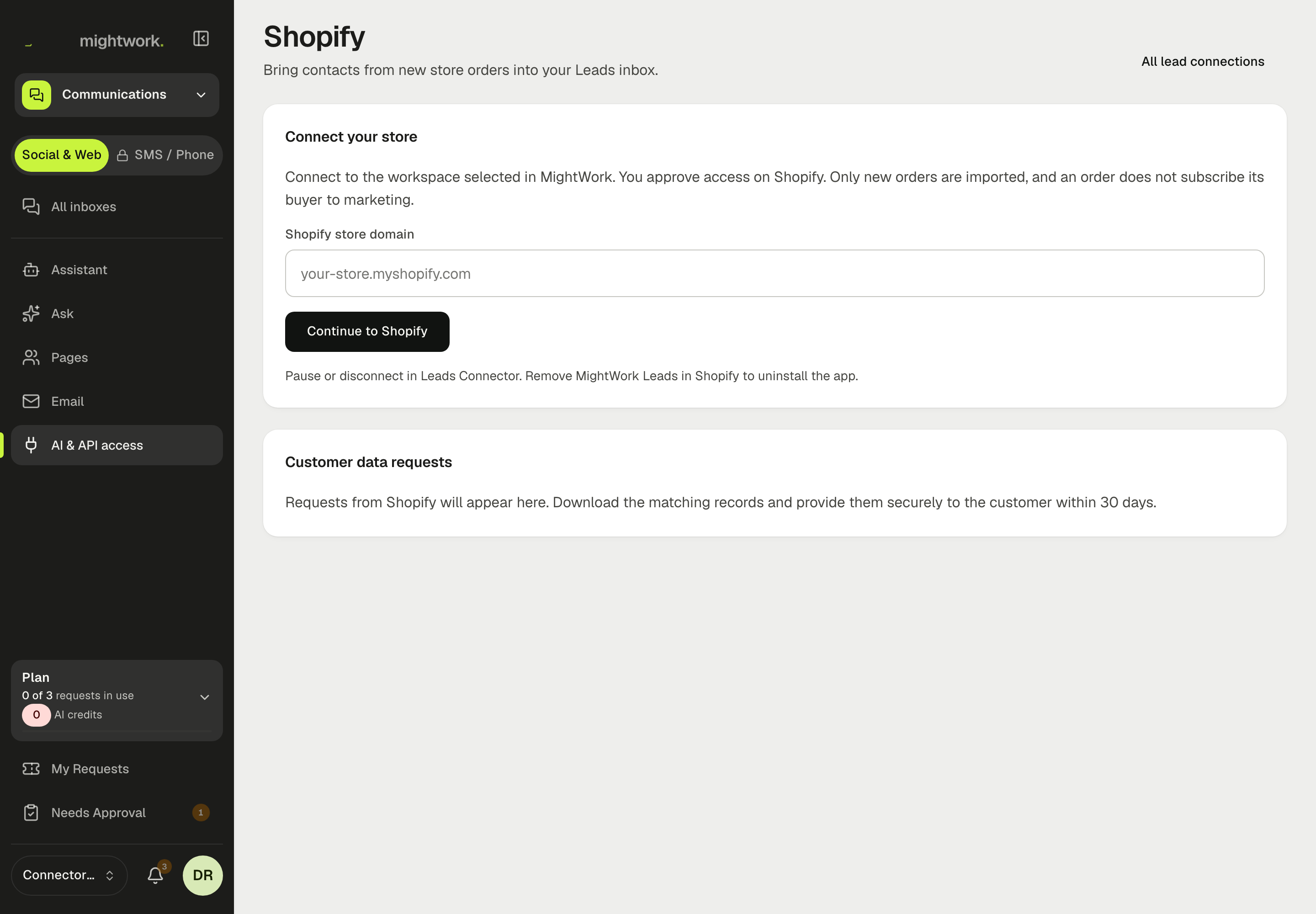
Enter your permanent store domain, such as your-store.myshopify.com, without https:// or a path. Select Continue to Shopify.
Sign in on Shopify and review the app permissions. Approve only for the intended store, then return to MightWork. A Shopify connected message confirms that the connection was saved.
Show the screen
3. Check a new order
Create an order using Shopify's test-payment flow with an email address you control. Open MightWork → Leads and find the matching contact with source Shopify.
Only new orders are imported. The app reads the order reference and contact name, email, phone and company when available. It does not import order items, totals or payment details, or subscribe the buyer to marketing.
Check your Leads inbox4. Know your privacy controls
A Shopify customer data request appears in MightWork's Shopify screen for the workspace owner. Download the matching records and deliver them securely to the verified requester within 30 days. A download is not proof that the customer received the response.
Signed customer deletion requests erase matching imported contacts. Shop deletion requests erase the shop's imported records after uninstall is verified. If Shopify cannot confirm the installation state, MightWork staff receive a durable verification task.
View customer data requestsIf something does not work
Shopify says the app cannot be installed
Until public review is complete, installation is restricted to approved development stores. Do not purchase an unrelated extension to unlock this app.
The connection did not complete
Check the permanent myshopify.com domain and the selected MightWork workspace. Start the connection again from MightWork; an old callback link cannot complete a new installation.
Orders stopped arriving
Confirm the connection is enabled, the workspace still has Leads Connector access, and new orders include email addresses. Reconnect from MightWork if Shopify authorization expired. Report the store domain and order reference to support, without customer details or tokens.
Pause, disconnect or remove
Pause or disconnect in MightWork → Connections → Leads Connector to stop imports. To uninstall, remove MightWork Leads in Shopify's app settings. Disconnecting in MightWork alone is not a Shopify uninstall. Customer privacy requests remain available to the workspace owner even if the plan no longer includes the connector.