Workspace documentation
Install MightWork Leads for WooCommerce
Bring the contact from each new WooCommerce order into your MightWork Leads inbox.
Before you install
What you need
- A MightWork workspace owner with Leads Connector access.
- A WordPress administrator on an HTTPS store with WordPress 6.5+, WooCommerce 9.0+ and PHP 7.4+. The plugin supports HPOS.
- The plugin download is free. Your MightWork plan must include Leads Connector; no paid WooCommerce connector extension is required.
What moves between your apps
- 1New WooCommerce order — Not started
- 2Signed contact delivery — Not started
- 3MightWork Leads inbox — Not started
Your checklist: 0 of 4 steps marked done
Use this checklist as you follow the steps. It resets when you leave; it does not check your connection automatically.
1. Upload and activate
Download mightwork-leads.zip using the button below. Leave the file zipped.
In WordPress, open Plugins → Add New Plugin → Upload Plugin. Choose the ZIP, select Install Now, then Activate Plugin. WooCommerce must already be active.
Download plugin · 1.0.12. Create the connection
In MightWork, select the workspace that should receive orders. Open Connections → Leads Connector. Choose WooCommerce, give the connection a recognizable name, enter the exact HTTPS Store URL shown in the WordPress plugin settings, and enter a new signing secret of at least 16 characters. Save the connection.
Copy the inbound URL shown after saving. Keep the signing secret you entered in your password manager; MightWork will not display it again. Never include it in screenshots or chat.
Open Leads Connector3. Save your connection
Open WooCommerce → Settings → Integration → MightWork Leads. Paste the inbound URL and signing secret from the same MightWork connection.
Enable the connection and save changes. The destination must start with https://app.mightwork.us/api/lead-connectors/inbound/. The secret field is blank after saving; this does not mean it was lost.
Show the screen
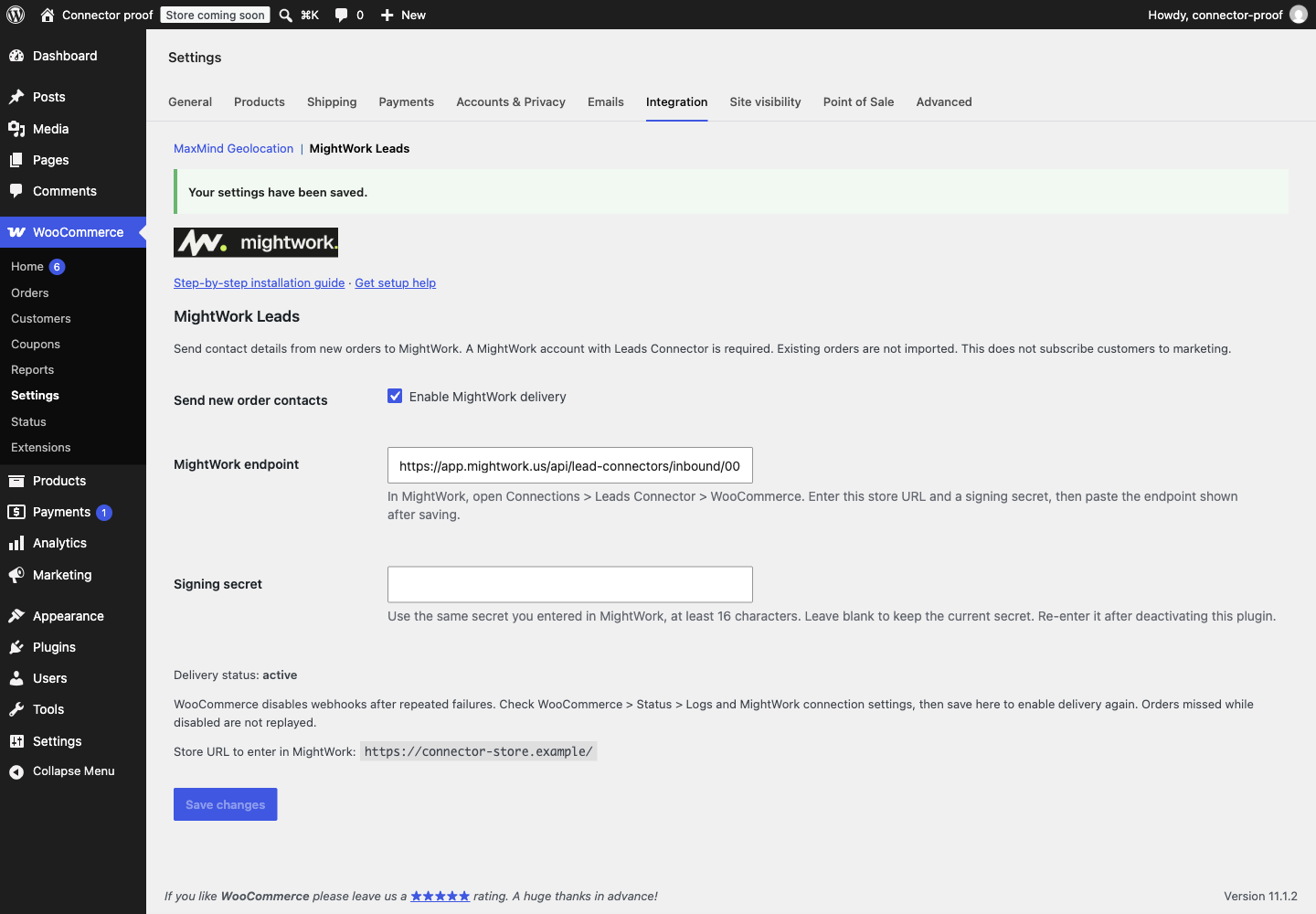
4. Check one new order
Use the connected store's test-payment flow to create a new order with an email address you control. Do not charge a real customer to test installation.
Open MightWork → Leads and find the matching contact with source WooCommerce. Check the email and order reference. An order without a usable email address is skipped; orders created before connection are not imported.
Only the order reference and billing contact fields are sent. Payment details, purchased items and totals are not sent. An order does not grant marketing consent.
Check your Leads inboxIf something does not work
The ZIP will not install
Upload the plugin ZIP, not a source-code archive. Confirm WooCommerce is active and your server meets the requirements above. Ask your WordPress administrator if Upload Plugin is missing.
Settings will not save
Copy both values from the same connection. Use the exact HTTPS inbound URL, with no query string or trailing text. The signing secret must be at least 16 characters. Match the exact Store URL shown by the plugin, including www or any subdirectory. A staging store needs its own connection and endpoint.
A new order did not appear
Check that the connection is enabled in both apps, that the order has an email address, and that your MightWork plan includes Leads Connector. In WooCommerce → Settings → Advanced → Webhooks, inspect the MightWork webhook's delivery status. After fixing the cause, save the plugin settings to re-enable delivery, then create another test order. Missed orders are not replayed. Give support the order reference and time, never the secret.
Rotate a secret or update the plugin
To replace a signing secret, disconnect the old MightWork connection, create a new one with a new secret, then save both the new endpoint and secret in WooCommerce. For an update, download the new ZIP and use WordPress's upload-and-replace flow. Recheck one new test order afterward.
Pause, disconnect or remove
Pause by clearing Enable in the plugin settings and saving. Deactivating MightWork Leads removes its managed webhook and disables delivery. Deleting the plugin removes its settings, while WooCommerce orders and other plugins' webhooks remain. Previously imported MightWork leads remain until you delete them. Reactivation requires saving the secret again.